Applies to:

Troubleshooting the User License Agreement (ULA)
Overview
Use these steps to determine if the End User License Agreement (EULA) has been accepted.
Call Avoidance
Guide operators through these steps to determine possible issues and corrections.
Verifying User License Agreement (ULA)
-
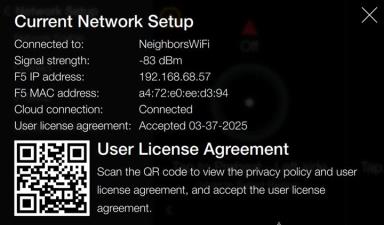
Verify the settings by navigating to: Menu > Advanced > Network Setup > Network Information.
-
Review the Current Network Setup:
-
User license agreement: [e.g., Accepted 03-19-2025] displays the User License Agreement (ULA) acceptance.
-
-
If the license is not accepted, do the following:
-
Verify the cloud connection is connected.
-
Complete the User License Agreement (ULA) instructions.
Verifying Cloud Connection
-
Verify the settings by navigating to: Menu > Advanced > Network Setup > Network Information.
-
Review the Current Network Setup:
-
Cloud connection: [e.g., Connected] displays the state of the radio, whether connected or disconnected.
-
If disconnected and all other verifications have been performed:
-
Install a cellular gateway to determine if the issue is with the customer's network, for example model ICG-150 cellular gateway.
-
Contact Technical Service for assistance.
Confirming Network Information and ULA (User License Agreement)
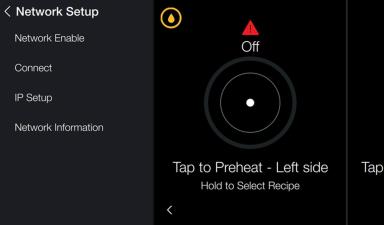
Navigation: Settings > Advanced > Network Setup > Information
-
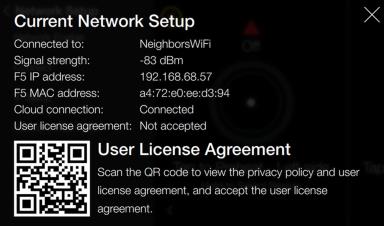
Tap Network Information for additional network details. User license agreement displays, Not accepted.
-
Scan the QR code and follow instructions to accept the user license agreement. The QR Code directs to commissioning.hennylink.com for commissioning of the unit.
-
Tap X to return to the Network Setup menu.
Related Content
How to Enable Network Connectivity
Troubleshooting the Internet Connection
Troubleshooting the Cloud Connection
Troubleshooting the IP Address
Troubleshooting the Radio (Dongle)
Troubleshooting Radio Software Setup
Troubleshooting Signal Strength
Reference
LVE 300 Software without Connectivity