Troubleshooting the Access Point Connection
Overview
Use these steps to correct connection issues from the appliance to the access point.
Call Avoidance
Guide operators through these steps to determine possible issues and corrections.
Verifying Connection to the Internet
-
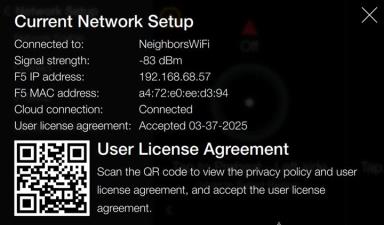
Verify the settings by navigating to: Menu > Advanced > Network Setup > Network Information.
-
Review the Current Network Setup:
-
Connected to: [Name of Network] displays the name of the network to which the dongle is connected.
-
-
Depending on what is displayed, do the following:
-
If blank, drop-down the control and re-seat the dongle.
-
If still blank, follow Connecting to the Internet to attempt connection to a different access point (Internet).
-
If still blank, replace the dongle.
-
Connecting to the Internet
Use these steps to verify connection to the cloud.
-
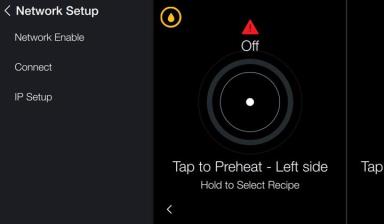
Once the network is enabled, additional options display, select Connect.
-
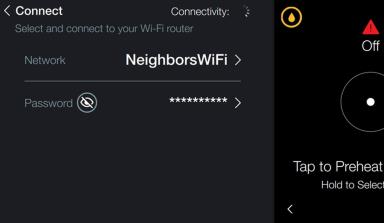
Select a radio button next to the desired access point (router name) to connect.
-
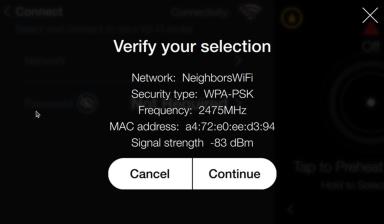
Select Continue to connect.
-
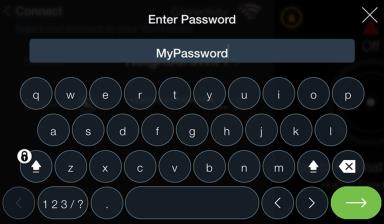
Enter the password for the selected access point.
-
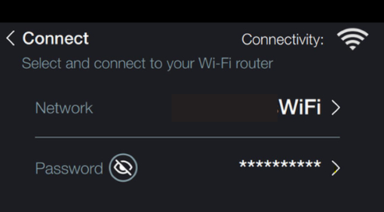
Wait for the Wi-Fi symbol to display next to connectivity. When the symbol displays, continue to the next step.
-
Select Connect to exit.
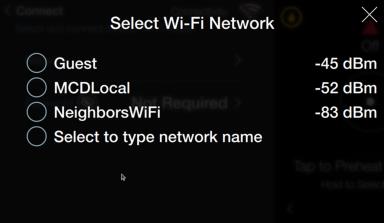
IMPORTANT: A connection signal strength between 0 and -80 dBm is required. A poor connection may not allow the certificate to download properly.
NOTE: If option “Select to type network name” is selected, a keyboard will display. Enter the name of the network, an approved Security type, and password if required.
Related Content
How to Enable Network Connectivity
Troubleshooting the Cloud Connection
Troubleshooting the User License Agreement (ULA)
Troubleshooting the IP Address
Troubleshooting the Radio (Dongle)
Troubleshooting Radio Software Setup
Troubleshooting Signal Strength
Managing Over the Air Connectivity Software Updates
Updating Connectivity Software
Reference
OFE 51X Software (without Connectivity)