Troubleshooting the Radio (Dongle)
Overview
Use these steps to determine if the dongle is working and the MAC address is whitelisted.
Call Avoidance
These troubleshooting steps require on-site assistance. Guide distributor's, or operator technician's through these steps to determine possible issues and corrections.
Dongle (radio) Installation
Reseating or Installing a Dongle
-
Remove the top, center screw holding the control in place.
-
Lower the control so you can see the back panel. The dongle is seated (inserted) into the Control Board, which is attached to the back of the control with screws.
- Note the MAC address on the dongle by pulling firmly on the dongle to unseat it from the connectivity board. The MAC address is on the white label attached to the dongle.
- Reinstall the USB dongle into the USB port on the (same as above) connectivity board. Ensure it's seated firmly.
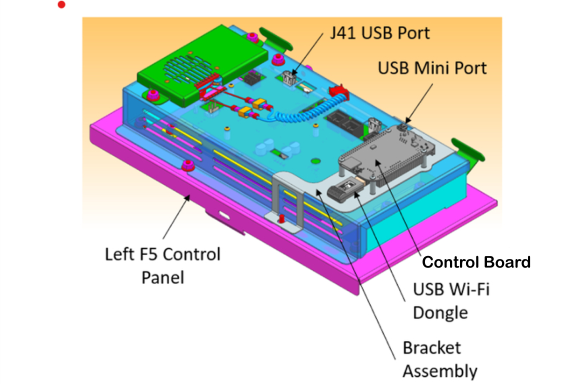
Verifying MAC Address
-
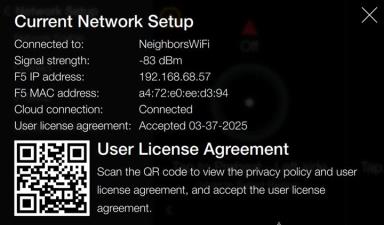
Verify the settings by navigating to: Menu > Advanced > Network Setup > Network Information.
-
Review the Current Network Setup:
-
F5 MAC address: [e.g., a4:72:e0:ee:d3:94] the MAC address is assigned to the dongle. It's listed on a label attached to the dongle.
-
-
Depending on what is displayed, do the following:
-
Verify with the operator's IT technician that the MAC address has been whitelisted on the network so, the dongle can communicate on the network.
-
If the address isn't displaying replace the dongle and control board as needed.
-
Related Content
How to Enable Network Connectivity
Troubleshooting the Access Point Connection
Troubleshooting the Cloud Connection
Troubleshooting the User License Agreement (ULA)
Troubleshooting the IP Address
Troubleshooting Radio Software Setup
Troubleshooting Signal Strength
Managing Over the Air Connectivity Software Updates
Updating Connectivity Software
Reference
OFE 51X Software (without Connectivity)